Friday, March 9, 2012

ONE-WHEELED MOTORCYCLE


This is the one and only one-wheeled motor. You need an

 extremely good balans to control and even ride this motor. This motor has the same engine power as a normal motor. Also this motor contains a balance system. You can imagine you need that, because there are only a few people who can even ride a one-wheeled bicycle, so there will be almost nobody who can drive a one-wheeled motor. The motor is good for the environment, because it has an ecomotor. His top speed is 60km/h till now, but the inventors intention was to create a good looking and environment safing motor in the first place. Because of this, the motor will be sold on the market within a few weeks. The price of the motor will be around $ 2500-3000 dollar.

New inventions and gadgets

New inventions and gadgets are continously appearing due to people's curiosity and willingness to improve their lifestyle and make their activities easier and more enjoyable. I selected some cool inventions I liked very much and I think that you will like too, and maybe even purchase, if you are a gadget fan!
Camping is an oportunity to get away from the cosmopolitan worlds, and have some quality relaxation time, without any form of technology, in a natural environment, using only products from mother nature. So, basically, camping is a sort of escape from technological world, but (there is a but) Orange has developed a solar powered tent, which can be the exception in your camping excursions. It seems to be the "tent of the future" and it ensures the all the electronics you take with you, including the gadgets, will work. In cooperation with some American design consultants for products, Kaleidoscope, they created this modern tent which transforms the solar energy into electric power for our gadgets, through a pouch which uses wireless charging.

This "wonder tent" has also an integrated geolocation technology, which is very useful in the situations when the campers loose the tent. They can send a SMS to their tent and tell him to glow more, so it becomes more visible and easily to find. It has also a control panel which shows the amount of the generated energy and the consumed amount. The great feature on this tent is that it has a heating system, which starts working after the temperature inside the tent drops below a previously set up level. This invention brings camping to a new level, which seems to be the future of this "natural" activity. So, from now on, you can adapt your camping excursions to the presence of the intelligent tent.


And if you are going camping, and also looking for treasures, or for gold in the waters of the rivers, than you shouldn't miss the metal detecting sandals. They are not actually a trend setter, but they are more interesting for people who really need to detect metals, and they don't have to carry the large pole around with them. The sandals have a small attachment, a small black box, which can be strapped around your leg, and hidden under the trouser. One of the sandals, the right one, has a copper coil, which is powered by the battery strapped around your leg, and when the sandals approach within 2' to a metal object, a vibration will be emitted, or a noise, either a light will be flashed to announce you the presence of a metal object close to your legs.The sandals require a 9V battery which will supply 6 hours of functioning; they cost $59.95 and you can find them at Hammacher and Schlemmer, and they can be purchase by both men and women.


Having these gadgets available, your camping excursions may become more interesting and you could make the relaxation period spent in the natural environment more pleasurable and you can have more fun with your friends in the heated tent, while weighing the gold you found with the sandals.

Thursday, March 8, 2012

Computer


2008 forecast: media asset management in the video world

Each year, CIOs and IT managers everywhere ponder the technology initiatives that will shape their businesses in the coming year(s). In 2008, organizations will undoubtedly look at how they are managing (or not managing) their video assets. The use of video in the enterprise has grown astronomically over the past few years, creating a logistical nightmare for many organizations. Employees spend countless hours locating a single clip, while teams fail to take advantage of existing assets, simply because they don't know what they already have. When it comes to managing video, the requirements are clear' store it, find it, and retrieve it.
However, it's not always so simple in the real world. Asset management systems are comprised of ingest/import, transcode, playout, storage, and export components. Bringing all these pieces together in a seamless fashion can tax even the largest IT department. Fortunately, in 2008 new turnkey solutions are available that bundle professional-grade hardware with Media Asset Management (MAM) software to provide an 'out of the box' experience that can save months of implementation time.
Putting it together- software for media asset management
Beyond physical storage, the right MAM software can help you streamline the acquisition, storage, and retrieval of digital media, saving significant time and money. The following features can help boost productivity and collaboration:
* A browser-based interface provides immediate access to projects and files from any location' critical for remote and multi-site collaboration. Using a standard Web browser gives end users more flexibility and greatly simplifies administration tasks, as there's no need to install and maintain separate client software.
* An intuitive graphical user interface (GUI) simplifies the learning curve.
* User rights policies give centralized control over who can see, upload, and download files, letting you provide access, while protecting assets. For example, an end user can have full rights for Project A with view-only rights for files associated with Project B.

Games Computer 2012


How to Build Your Own Gaming PC


To build a gaming PC is to enter a dazzling realm of modern engineering, blazing fast processors and cutting-edge graphics. Why, just the process of selecting a hard drive offers hundreds of possible options, each one representing an opportunity to fine-tune your machine into peak performance. This is the guide for people who cannot be bothered with that crap.
Look, your consoles play games just fine. Some of them do other things as well, like streaming movies or facilitating identity theft. You don't need a gaming PC.
Sure, many games look better on a well-equipped computer, and there's the occasional big-ticket game that's exclusive to Windows. But in truth, there is only one good reason to build a gaming PC, which is that it's fun. It's fun to piece something together, plug it in and make it go. And the pride from a successful build lasts a long time.
This guide is not about maximising your computer's specs; it's about maximising fun (or, more to the point, minimising agony). It is designed to be both helpful and laughable in its inadequacy. Much of the advice I offer will be objectively terrible. Dedicated hobbyists will not like (or need) this guide. I am fond of hobbyists. I just don't think you need to be one in order to build your own PC.

1. Should you do this?

Probably not. It's sort of complicated. Take this questionnaire.
Do you know how a computer works?
A. Yes. The hard drive is for long-term storage, RAM is for short-term data, and they both connect to a motherboard, which... [You continue to recite an accurate outline of a computer's workings even though I have obviously stopped listening.]
B. Yes. I type the thing into the Google, and my internet goes to the thing.
C. Yes. I push the lever down, and a few minutes later, my potato waffles are done.
For those who answered anything other than "A," put down the hammer and nails - you are not going to be building a PC today. The fact that you thought you'd be using a hammer and nails should have been a red flag.

2. Prepare to shop

There are two things you need to start shopping: a store and a better guide than this one.
Here in the US, I like to get computer stuff from Newegg. I hear that in the UK, Novatech and Aria PC are popular. I'm not endorsing any of these. Honestly, if you can't find a computer store on the internet, that does not bode well for success in this process.
Watch out for money-saving opportunities. For instance, many items come with a rebate offer attached. A rebate works like this: the manufacturer promises to give you money if you buy a product, and then once you buy the product, they do not actually give you money.
'How to Build Your Own Gaming PC' Screenshot 1
Case (n.): The paper bag you put over your computer's head.
As for the better guide, I mean a guide filled with the technical arcana that this guide lacks. You will reference this as you shop, and here's how: if the product you're considering seems to have a lot of the same acronyms and numbers as the products in the tech-speak guide, you can buy with 100 per cent confidence, maybe.
Select the homeliest, pixilated spreadsheety-est, jargony-est message-board guide you can find. I highly recommend the annual NeoGAF PC-building thread as a model of the form. It presents a surfeit of solid information in the most unattractive manner possible.
Ugly is good. Putting a computer together is a raw, nuts-and-bolts deal; that's part of the joy. When people try to make the process romantic, it feels false at best and icky at worst.
True story: while researching my recent PC build, I came across a glossy online guide in which the author described Intel's new Sandy Bridge processor chipset as if it were a woman whom he desired to have sex with. This despite the reality that Sandy Bridge is the least arousing name Intel could have chosen for their product.
The downside of message-board guides is that they are typically followed by thousands of enraged comments to the effect that everything in the guide is wrong. Ignore them. Which brings me to the next step:

3. Embrace your ignorance

Decide how much money you'd like to spend on this enterprise. For my recent PC build I set a budget of $900, which is the equivalent of about £25.50 or, in the imminent post-economic-apocalypse landscape, a tooth.
Don't worry too much about that budget at first. Just start piling motherboards and other junk into your cart while staying in the ballpark of your ideal figure. Maybe you end up with a computer worth two teeth. That's OK. Dream a little.
After you've pretend-splurged, whittle things back down under budget. Don't mourn the high-end kit you have to delete from your cart because - I can't emphasise this enough - you were never going to notice the difference anyway.
See, as you research PC components, a strange thing will happen. You, a person who stands there picking chunks of raw cookie dough from the tube without even closing the refrigerator door, will come to believe that you have the expert discernment of an audio-visual engineer. "This 6850 video card won't do at all," you'll harrumph, "a person of my taste requires the 6950."
No, you don't. Richard Leadbetter can tell the difference between the graphics power of the 6850 and the 6950, probably with his eyes closed. You and me, we can't. MAYBE if we run a side-by-side demo. By the way, never do this.
Don't run benchmark software, either, because it makes a little chart with little bars on it, and then you compare the length of your bar to the bars that people have posted on the internet, and all of a sudden it's gym class 1996 all over again.
'How to Build Your Own Gaming PC' Screenshot 2
Overclock (v.): To convert a functional processor into one that crashes a lot but does so very quickly.
Your ignorance is an enormous asset. It saves money and preserves fun. Build something that works nicely within your budget, and then forget that anything else ever existed. If you still find yourself tempted by the high-end, keep in mind the great equaliser: no matter how much you spend on your PC, in a few years it will be junk.
Beware. People will try to undermine your bliss. Last weekend I mentioned to my brother, a PC-building enthusiast, that I had put together my own computer.
"I think I have an extra video card that you could use," he said.
"Nah, that's OK," I said.
"Are you sure? It's probably faster than the one you have. I think it's a 9500," he said.
"Oh, mine is a 9600," I said, and he relented.
Lesson: If you ever get into a conversation with someone about your PC's specs, lie. Specifically, take the last number mentioned in conversation and add 100. When the interlocutor asks about a 3.3 GHz Intel i5 processor, casually offer that you have the 103.3 GHz Intel i105 processor. If questioned further, say, "You know, the new one." Then place a large quantity of food in your mouth and walk away.
The truth is, I don't remember what the model number of my video card is. All I know is everything looks real pretty.
On to the components, then.

4. The case

The case is the hulking plastic box into which you will cram the computer's innards. To decide on a case style, it's time for another ultra-short questionnaire:
Do you have dignity?
A. Yes
B. No
If you answered "A," just get an inoffensive black / grey case and be done with it.
If you answered "B," ask somebody who answered "A" to pick a case for you.
"Case style" is an oxymoron. No one is going to find your computer stylish. It's a wheezing box of circuitry. Midnight-blue LED spotlightstransparent side panels and garish paint jobsaren't going to change that. They only compound the embarrassment.
(Confession: I think the see-through panel is a neat idea, but I've never seen a windowed case that didn't look like it was designed by a 12 year-old sketching in the margins of his geometry textbook.)
Because you will reuse it for future builds, choosing a case is the PC-building equivalent of getting a tattoo. A blinged-out dork-box is the equivalent of a rainbow-unicorn tramp stamp. While you might convince yourself that it's cool right now, it is a time bomb of regret.
By the same token, a boring grey-rectangle case is like a little heart tattoo by your ankle: still not so tasteful, but whatever.

5. The processor and motherboard

The processor, or CPU, is the "brain" of the PC, according to a Burger King placemat I read once. Modern games, however, depend much more on the graphics card than the CPU. In gaming PCs as in life, the brain matters a lot less than you might hope.
The gigahertz / cores / chipsets breakdown changes on a monthly basis, but processors are a commodity. As such you will notice they fall into a consistent price hierarchy, even as the technology evolves.
High-end processors are manufactured as a practical joke. In essence, Intel is daring you to purchase a CPU that is maybe 2 per cent faster than comparable products costing hundreds less. They put this precious jewel on the shelf and then sneak around the corner, trying to hold in their giggles as some dingus with a God complex walks up and buys the thing because he has to have the "very best".
Then there is the second tier. The prices are reasonable by comparison and their still-considerable power will come in handy for all that protein-fold analysis you do. What's that you say? You don't decode intensely complicated atomic structures on your PC? Rather, you play Desktop Dungeons and design flyers for your alt-rock band in Microsoft Paint? Right, that's what I thought.
In short, if you plan to spend more than £150 on your processor (and even that is a lot), it might be time for some soul-searching. Hie thee to the third tier.
Motherboards are pretty easy. Find the boards that are compatible with your processor's chipset. Next, find a midrange model that has plenty of slots and a number of decent user reviews. Buy that one. Sure, the most popular motherboard is not necessarily the best one, but at least if it stinks there are plenty of people suffering along with you.

6. The video card

'How to Build Your Own Gaming PC' Screenshot 3
AMD PH II X4 955 3.2G AM3 RT (n.): Hell if I know.
Feel free to spend a little more on your video card as games rely on this component more than anything else. That said, you should still avoid the deep, pricey end of the technological pool, which is where the rubes swim. And, in all likelihood, where they pee.
If you're hooking your PC up to a huge, high-resolution desktop monitor, you're going to want a powerful card because it has a lot of pixels to push. (This is a colloquialism; the card is not literally pushing the pixels. In actuality, the process is more like a stern beating.)
I connected my gaming PC to my TV, a setup I recommend. A TV typically has fewer pixels than a comparable monitor, you see. Plus, my couch is eight feet away from the set. The viewing distance means that I can buy a cheaper card and the picture still looks great. Therefore, if you want to save money on a video card, move your couch.

7. The hard drive

Hard drives are cheap. Get a fast one. Anything slower than 7200 RPM, and you might as well chisel the ones and zeroes in there by hand. I mean, honestly.
The other consideration is size. Here is the formula for determining ideal hard drive capacity: take the number of times per week that you download internet pornography, and multiply that number times 100. This is the number of gigabytes your hard drive should have. (NOTE: Current drives generally max out at 3000 gigabytes, but you can buy more than one.)
An exciting new innovation is the advent of fast solid-state drives. Less capacious and far more expensive than traditional hard drives, today's SSDs are great for PC builders who find themselves in a "Brewster's Millions"-type situation, in which they must spend a huge quantity of money within 30 days so that they may inherit an even larger sum of money. Good luck!

8. Everything else

RAM is even cheaper than hard drives so there's no need to skimp. A pair of 2-gigabyte sticks, for a total of 4 GB, should do the trick. You must install the sticks in adjacent slots on your motherboard for maximum performance. Placed in such close proximity, each stick of RAM will fight to outperform its sibling and win your favour. They will grow to resent each other and, with time, you.
'How to Build Your Own Gaming PC' Screenshot 4
RAM (n.): Rutherford Access Memory, named for its inventor, William RAM.
Do you need a sound card? If it is 1997: definitely.
You'll have to purchase an OS for your rig, which is to say Windows. Microsoft sells discounted editions for system builders; don't buy the regular boxed copy. You may have a friend who will urge you to try gaming on an open-source OS like Linux. This is a great opportunity to not be friends with that person anymore.
Buy your power supply last. There are a number of online calculators that can help you determine the right wattage (probably in the 500- to 600-watt range). Get more wattage than you need right now, to allow for later expansion.
The most reliable power supplies carry what is called an "80 PLUS" certification. This seal of approval indicates that the unit has undergone rigorous industry tests to ensure that it has at least 80, and sometimes even more than 80.

9. Put it all together

The parts will be shipped to your home in the finest cardboard boxes. Open these boxes and take the parts out. Put everything into the slot where it looks like it's supposed to go.
No kidding, it's not much more complicated than that. Sure, there are going to be gaps between the myriad instruction booklets you receive, and Tab A doesn't always slide effortlessly into Slot B. You'll have figure a few things out for yourself. But that's your deal - you're a gamer, right? You thrive on challenges like this.
Keeping that philosophy in mind, here are a few general tips to make your assembly go more smoothly.
  • Always ensure that parts are seated firmly, yet do not apply excessive force.
  • The tangle of wires coming from the power supply can be intimidating at first. Be patient; sort through the cables one by one.
  • Minimise the number of tacos you consume while assembling the computer. If possible, eat no tacos (or, more reasonably, only soft tacos).
  • If the PC doesn't work the first time you start it up, don't panic! Simply switch the computer off, put it in the garbage and begin again from Step 1.
  • If you find that the verge depth of your anchor escapement is causing the wheel to bind up, you have mistakenly assembled a cuckoo clock.

10. Bask in your superiority

Congratulations! You have joined an elite group: those who dared to build it themselves. Granted, you didn't do much more than place a bunch of pieces in their respective holes - you "built your PC" in the same way that a guy who screws in a light bulb has "invented electricity".
Still, you should be proud. Now it's time to reward yourself with - what else - a pleasant afternoon of gaming. So fire up that Xbox and enjoy. You've earned it!

Games Computer


Computer games stunt teen brains

Hi-tech maps of the mind show that computer games are damaging brain development and could lead to children being unable to control violent behaviour
Computer games are creating a dumbed-down generation of children far more disposed to violence than their parents, according to a controversial new study.
The tendency to lose control is not due to children absorbing the aggression involved in the computer game itself, as previous researchers have suggested, but rather to the damage done by stunting the developing mind.
Using the most sophisticated technology available, the level of brain activity was measured in hundreds of teenagers playing a Nintendo game and compared to the brain scans of other students doing a simple, repetitive arithmetical exercise. To the surprise of brain-mapping expert Professor Ryuta Kawashima and his team at Tohoku University in Japan, it was found that the computer game only stimulated activity in the parts of the brain associated with vision and movement.
In contrast, arithmetic stimulated brain activity in both the left and right hemispheres of the frontal lobe - the area of the brain most associated with learning, memory and emotion.
Most worrying of all was that the frontal lobe, which continues to develop in humans until the age of about 20, also has an important role to play in keeping an individual's behaviour in check.
Whenever you use self-control to refrain from lashing out or doing something you should not, the frontal lobe is hard at work.
Children often do things they shouldn't because their frontal lobes are underdeveloped. The more work done to thicken the fibres connecting the neurons in this part of the brain, the better the child's ability will be to control their behaviour. The more this area is stimulated, the more these fibres will thicken.
The students who played computer games were halting the process of brain development and affecting their ability to control potentially anti-social elements of their behaviour.
'The importance of this discovery cannot be underestimated,' Kawashima told The Observer .
'There is a problem we will have with a new generation of children - who play computer games - that we have never seen before.
'The implications are very serious for an increasingly violent society and these students will be doing more and more bad things if they are playing games and not doing other things like reading aloud or learning arithmetic.'
Kawashima, in need of funding for his research, originally decided to investigate the levels of brain activity in children playing video games expecting to find that his research would be a boon to manufacturers.
He expected it to reassure parents that there are hidden benefits to the increasing number of hours their children were devoting to computer games and was startled by what he discovered.
He compared brain activity in children playing Nintendo games with those doing an exercise called the Kraepelin test, which involves adding single-digit numbers continuously for 30 minutes.
The students were given minute doses of a radioactive pharmaceutical through an intravenous drip which allowed a computer to map a complex picture of their brains at work. A subsequent study was conducted using magnetic resonance images.
Both studies confirmed the high level of brain activity involved in carrying out simple addition and subtraction and that this activity was particularly pronounced in the frontal lobe, in both the left and right hemispheres.
Though it is often thought that only the left hemisphere is active for mathematical work and that the right hemi sphere is stimulated by more creative thinking, the professor found that arithmetic produced a high level of activity in both hemispheres.
In subsequent studies, Kawashima established that arithmetic exercises also stimulate more brain activity than listening to music or listening to reading. Reading out loud was also found to be a very effective activity for activating the frontal lobe.
Kawashima, visiting the UK to speak at this weekend's annual conference of the private learning programme Kumon Educational UK, said the message to parents was clear.
'Children need to be encouraged to learn basic reading and writing, of course,' he said. 'But the other thing is to ask them to play outside with other children and interact and to communicate with others as much as possible. This is how they will develop, retain their creativity and become good people.'

How to make a computer faster


6 ways to speed up your PC

By following a few simple guidelines, you can maintain your computer, help increase your PC speed, and help keep it running smoothly. This article discusses how to use the tools available in Windows 7, Windows Vista, and Windows XP Service Pack 3 to help make your computer faster, maintain your computer efficiently, and help safeguard your privacy when you're online.
Note: Some of the tools mentioned in this article require you to be logged on as an administrator. If you aren't logged on as an administrator, you can only change settings that apply to your user account.

1. Remove spyware, and help protect your computer from viruses

Spyware collects personal information without letting you know and without asking for permission. From the websites you visit to user names and passwords, spyware can put you and your confidential information at risk. In addition to privacy concerns, spyware can hamper your computer's performance. To combat spyware, you might want to consider using the PC safety scan from Windows Live OneCare. This scan is a free service that helps check for and remove viruses.
Download Microsoft Security Essentials for free to help guard your system in the future from viruses, spyware, adware, and other malicious software (also known as malware). Microsoft Security Essentials acts as a spyware removal tool and includes automatic updates to help keep your system protected from emerging threats.
The Microsoft Windows Malicious Software Removal Tool is another utility that checks computers running Windows 7, Windows Vista, Windows XP, Windows 2000, and Windows Server 2003 for infections by specific, prevalent malicious software, including Blaster, Sasser, and Mydoom, and helps remove any infection found.

2. Free up disk space

The Disk Cleanup tool helps you to free up space on your hard disk to improve the performance of your computer. The tool identifies files that you can safely delete and then enables you to choose whether you want to delete some or all of the identified files.
Use Disk Cleanup to:
  • Remove temporary Internet files.
  • Delete downloaded program files, such as Microsoft ActiveX controls and Java applets.
  • Empty the Recycle Bin.
  • Remove Windows temporary files, such as error reports.
  • Delete optional Windows components that you don't use.
  • Delete installed programs that you no longer use.
  • Remove unused restore points and shadow copies from System Restore.
Tip: Typically, temporary Internet files take the most amount of space because the browser caches each page you visit for faster access later.
To use Disk Cleanup:

Windows 7 users

Windows Vista users

Windows XP users

3. Speed up access to data

Disk fragmentation slows the overall performance of your system. When files are fragmented, the computer must search the hard disk as a file is opened (to piece it back together). The response time can be significantly longer.
Disk Defragmenter (sometimes shortened to Defrag by users) is a Windows utility that consolidates fragmented files and folders on your computer's hard disk so that each occupies a single space on the disk. With your files stored neatly end to end, without fragmentation, reading and writing to the disk speeds up.
When to run Disk Defragmenter
In addition to running Disk Defragmenter at regular intervals (weekly is optimal), there are other times you should run it, too, such as when:
  • You add a large number of files.
  • Your free disk space totals 15 percent or less.
  • You install new programs or a new version of the Windows operating system.
To use Disk Defragmenter:

Windows 7 users

Windows Vista users

Windows XP users

Running Disk Cleanup and Disk Defragmenter on a regular basis is a proven way to help keep your computer running quickly and efficiently. If you'd like to learn how to schedule these tools and others to run automatically, please read Speed up your PC: Automate your computer maintenance schedule.

4. Detect and repair disk errors

In addition to running Disk Cleanup and Disk Defragmenter to optimize the performance of your computer, you can check the integrity of the files stored on your hard disk by running the Error Checking utility.
As you use your hard drive, it can develop bad sectors. Bad sectors slow down hard disk performance and sometimes make data writing (such as file saving) difficult or even impossible. The Error Checking utility scans the hard drive for bad sectors and scans for file system errors to see whether certain files or folders are misplaced.
If you use your computer daily, you should run this utility once a week to help prevent data loss.

Run the Error Checking utility:

5. Learn about ReadyBoost

If you're using Windows 7 or Windows Vista, you can use ReadyBoost to speed up your system. A new concept in adding memory to a system, it allows you to use non-volatile flash memory—like a USB flash drive or a memory card—to improve performance without having to add additional memory.
  • Learn more about ReadyBoost in Windows 7.
  • Learn more about ReadyBoost in Windows Vista.

6.  Upgrade  to  Windows 7

If you try all the previous remedies and your computer still isn't as fast as you would like it to be, you may want to consider updating to Windows 7.
If the Windows 7 Upgrade Advisor determines that your computer can't run Windows 7 and you still have the need for speed, it might be time for a new computer. There are some great deals on new computers right now:
  • Shop for new desktop computers.
  • Shop for new laptop computers.
  • Shop for netbooks.

Finding The Right Keywords For Your Computer Businesses Website


Guest Post by Bryan Vest: Bryan Vest is a web developer/SEO specialist who enjoys writing articles to help make techs websites succeed.

As you all know sometimes finding the right keywords to target can be one of the hardest parts of SEO. With proper keyword research you can find keywords with low competition to bring you high quality local traffic. In this article, I would like to show you some methods to properly research keywords to target for your SEO campaign. This is by no chance the only ways, but these are very easy and great methods to look for keywords to target.

Now we all would like to jump right out there and target the short tail keywords like "Computer Repair"(673,000 unique searches) and "Virus Removal" (550,000 unique searches), but the competition on those keywords are very high and let’s face it without a very high SEO budget a small town Computer Repair shop doesn’t stand a chance. Another thing you have to think about is how much of this traffic is areas you actually can support. So the perfect keywords to target would be something that is low competition and focused on your supported area.
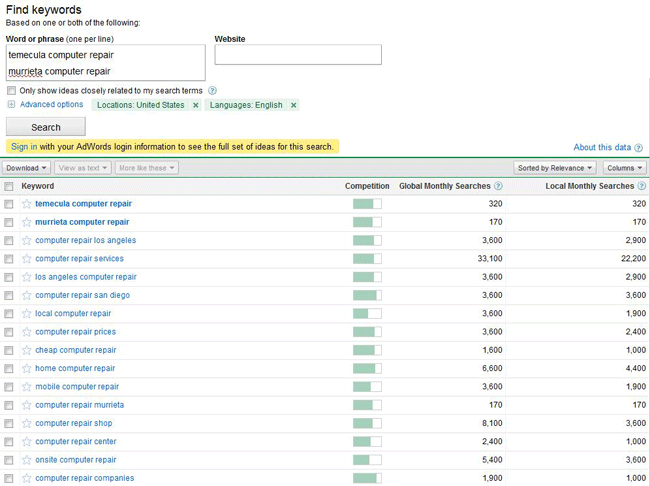
Now that we have the basics covered let’s begin with the process itself.I will be using local major cities in my area for the example. We will start with the just about universal tool for researching keywords, Google Adwords Keyword Tool. What would be better to use in getting to know the exact amount of hits your computer repair site can receive than a tool made by Google itself? Now follow the linkhttps://adwords.google.com/select/KeywordToolExternal. This form should be very simple and easy to follow for just about everyone. You type the keywords you want to research in the "Word or phrase" box one line at a time. You may put your website in the website box, but for the sake of research you won’t want to since this will just pull keywords from your site. A good way to start your research is by typing in local cities you support followed by computer repair. In my case those major cities would be Temecula and Murrieta. Now just fill out the captcha and press search.
You will immediately see a list of keywords populate the bottom of the screen as seen above. As you can see in my case the searches "Temecula computer repair" brings in about 320 searches a month while “Murrieta computer repair” brings in about 170 unique searches. These would be good keywords to target since just imagine the work you could get if you had the combined 490 clicks to your site a month.
Now you have found 2 keywords you would like to target your next step is to find the competitiveness of the keywords. You may notice the competition bar as shown above.Just completely ignore this! You will find very noncompetitive keywords showing competition of way above 75% while highly competitive keywords ranking in the 30%. Now what we are going to do to find the competitiveness of the keyword is actually look at the competition! Click on the keywords to bring up the searches in a new tab.
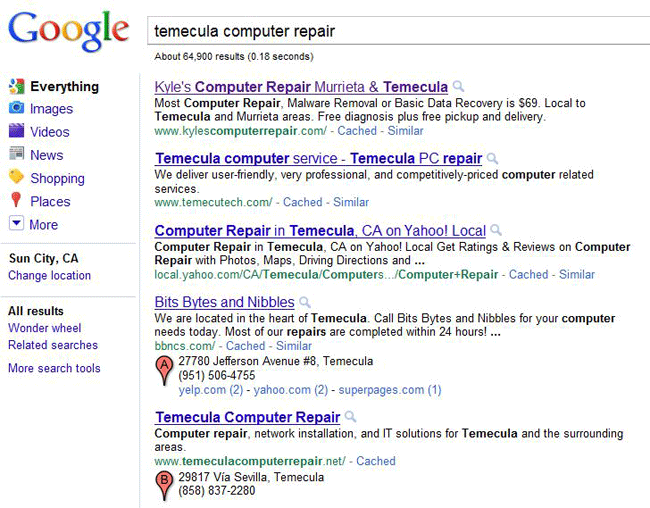
Here you can see who is ranking for the keyword in question. Right off the bat you can tell this keyword is not very competitive as the Yahoo Local page is ranking 3rd! To properly assess the competition I always look at where I want to be. You always want to be number 1 so we will look at "Kyle’s Computer Repair". I will not be posting a picture of the design since this is a live site and it’s really has nothing to do with keyword research. Moving on, right click anywhere on the background of a page and select "view source". This will bring up his source coding of the website. Now if you don’t understand HTML don’t worry we will include some basics.
The first thing we will look at is the title tag. This is the main writing that appears when you search on Google. Now unless you are an industry leader the best thing you can do is put the keyword right in the beginning of the title tag. Is his case he put his company name first. Though this doesn’t hurt him it will not carry the same weight as say "Keyword – Business Name". In his case though the way he went the right way as his name includes computer repair.
The next thing you will want to look for is IMG tags. This is the biggest giveaway of them all since most designers forget about them and it is a clear sign if he is focusing on SEO. As you can say in this sites case the ALT attribute is left blank. This is major since Google’s spiders can’t read images as humans do, but can read the ALT attribute. Looking just at these 2 things you can determine that he is not really focused on SEO as much as he should be.
Now everyone knows the biggest part of SEO is backlinks! Backlinks are essentially other sites telling Google "Hey! This site is important!" We are now going to check the competitions backlinks to how hard this keyword will really be. Now there are many tools out there to check the backlinks of a site, but the simplest one for the sake of this guide will be http://www.backlinkwatch.com. Now once you open this site you just type the URL of the site you want to research in the box and click "Check Backlinks".
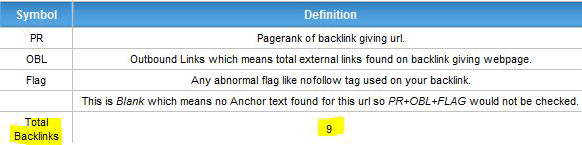
Now it might take a few seconds, but on the left side of the screen you will see a box up the left. This holds the important information you are looking for which is the total backlinks. As you can see with this site there are only a total of 9.
Now with knowing that the owner is not focused on the On-Site SEO and the Off-Site SEO, but is still ranked first for the keyword in question you know this keyword will be fairly easy to target. Now just repeat these steps with each keyword you would like to target and you will be gaining lots of high quality tech related traffic to your site in no time.
Here are some keyword combinations that will work quite often in major cities.
"[city] computer repair"
"[city] computer services"
"[city] virus removals"
"[city] data recovery"

Popular Posts

Followers